PowerShell Application
Field Tablet Configuration Utility
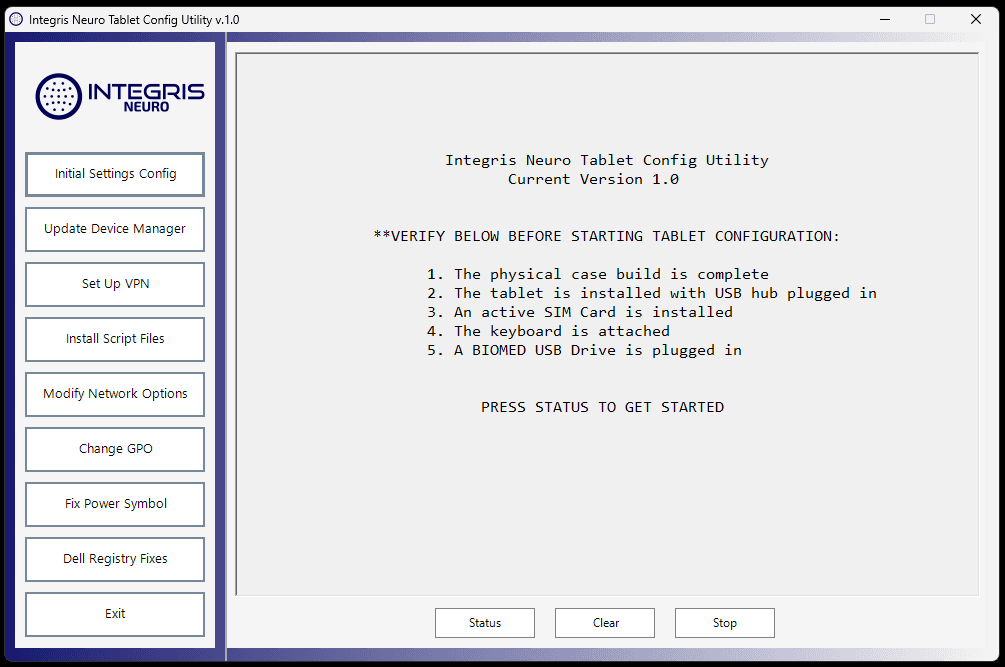
A guided PowerShell application that transformed a lengthy, manual device-preparation process into a standardized, repeatable deployment workflow.
The utility brought registry configuration, hardware settings, network preparation, VPN setup, script installation, policy changes, and deployment validation into one technician-focused interface.
~80%
Reduction in setup time
8
Guided configuration stages
100+
Field tablets supported with this app
Production
Built for technician workflows
The Problem
Device preparation was slow and difficult to standardize
Preparing a field tablet required technicians to complete a long series of Windows configuration tasks across several different interfaces.
These tasks included registry changes, network settings, VPN configuration, hardware power-management options, folder and script installation, system-policy changes, and final validation.
The process depended heavily on technician memory and written instructions. Missing one setting could produce connectivity, reliability, or support problems after the device entered the field.
The Solution
One interface for the entire deployment workflow
I designed a PowerShell application that organized the deployment process into clearly labeled stages.
Each stage runs a focused automation module and reports its progress through a persistent status and logging panel. Technicians can complete the full workflow in sequence or rerun an individual stage when troubleshooting or correcting a partial configuration.
The application reduced reliance on memory, simplified technician onboarding, and produced a more consistent result regardless of who prepared the device.
Core Capabilities
A guided interface for a complex technical workflow
The application brought several independent Windows administration tasks into one structured deployment experience.
Initial System Configuration
Applies required Windows settings, registry values, folder structures, shortcuts, and remote-access configuration.
Hardware Configuration
Identifies supported hardware and applies device-specific power-management, network-adapter, touchscreen, and camera settings.
Network and VPN Setup
Configures network interfaces, connection priorities, VPN profiles, and mapped resources using standardized deployment values.
Script Personalization
Updates deployment files with device-specific identifiers and installs the supporting automation scripts required by the field workflow.
Validation and Status Reporting
Provides a step-by-step status view so technicians can confirm which configuration stages completed successfully.
Centralized Logging
Records actions, progress, warnings, and failures in a persistent log area to simplify troubleshooting and support.
System Architecture
A modular workflow built around independent operations
The interface coordinated reusable task modules rather than placing the entire deployment process inside one monolithic script.
Technician
Provides device-specific input
PowerShell GUI
Guides the deployment workflow
Task Modules
Runs focused configuration actions
Windows Systems
Registry, devices, network, and policy
Status and Logs
Confirms results and surfaces failures
The deployment functions were structured so that technicians could rerun an individual stage when necessary. This reduced the risk of repeating completed work and made troubleshooting more targeted.
Engineering Decisions
Design choices shaped by the people using the tool
The project was not only an automation exercise. It required decisions about usability, maintainability, troubleshooting, and future expansion.
Why build a graphical interface?
The primary users were technicians with varying levels of PowerShell experience. A graphical interface reduced training requirements, organized the deployment sequence, and made the workflow more approachable for occasional users.
Why use a modular workflow?
Each deployment stage could be tested, maintained, and rerun independently. This reduced unnecessary repetition and made it easier to extend the application as hardware and operational requirements changed.
Why include persistent logging?
Technicians needed immediate confirmation of completed actions and clear information when a step failed. Persistent logging improved troubleshooting and created confidence that the configuration had been applied successfully.
Why separate reusable logic from device data?
Most automation logic was common across every deployment, while identifiers and environment-specific values changed. Keeping those concerns separate made the tool easier to maintain and safer to update.
Technical Challenges
Solving for reliability, usability, and hardware variation
Supporting multiple hardware configurations
Different tablet models contained different wireless adapters, camera sensors, power-management capabilities, and device identifiers. The application needed to detect the available hardware and apply only the relevant settings.
Making administrative automation approachable
The underlying tasks required elevated permissions and interacted with several Windows subsystems. I created a guided interface that allowed technicians to execute the workflow without manually running or understanding every underlying command.
Handling partial completion
A deployment could fail at one step while other steps remained valid. The utility was designed as a modular workflow so individual operations could be rerun without restarting the entire device-preparation process.
Balancing standardization with device-specific data
Most settings needed to remain consistent across every device, while values such as device names and identifiers needed to be inserted dynamically during deployment.
Development Process
Built through observation and iteration
Map the existing workflow
I documented each manual preparation step, the system it affected, the required permissions, and the consequences of an incomplete configuration.
Automate individual operations
Each operation was first developed and tested independently before being incorporated into the larger interface.
Create a guided user experience
I organized the tasks into a logical sequence and provided visible progress, output, and failure information.
Refine from real-world feedback
The workflow evolved as new device models, field issues, and technician usability needs were identified.
Results
Faster deployments with fewer opportunities for error
The utility converted a detailed technical checklist into a repeatable application workflow. It reduced technician effort, improved configuration consistency, and made the process easier to troubleshoot and support.
Primary outcomes
- →Approximately 80% less hands-on setup time
- →More consistent device configurations
- →Easier technician onboarding
- →Faster identification of incomplete steps
- →Reduced dependence on manual documentation
- →Reusable modules for future automation work
Lessons Learned
What this project taught me
- →Separate large workflows into independently testable modules.
- →Design logging for the person who will troubleshoot the tool later.
- →Treat usability as part of technical reliability.
- →Validate system state rather than assuming a command succeeded.
- →Keep device-specific values separate from reusable application logic.
Project confidentiality
This project was developed for an internal production environment. Company identifiers, credentials, network details, proprietary configuration values, and operationally sensitive code have been intentionally excluded. This case study focuses on my problem-solving process, architecture, implementation approach, and results.
Return to the portfolio to view additional automation projects.
View all projects