IT Support Automation
Remote Ambulatory EEG Support Utility
A modular PowerShell and Windows Forms application that helps IT support personnel configure, diagnose, and repair remote ambulatory EEG systems.
The application consolidated VPN setup, script maintenance, registry remediation, connectivity testing, and Wi-Fi, cellular, and WAN troubleshooting into one guided technician workflow.
Guided Support Interface
Screenshot 1 of 2
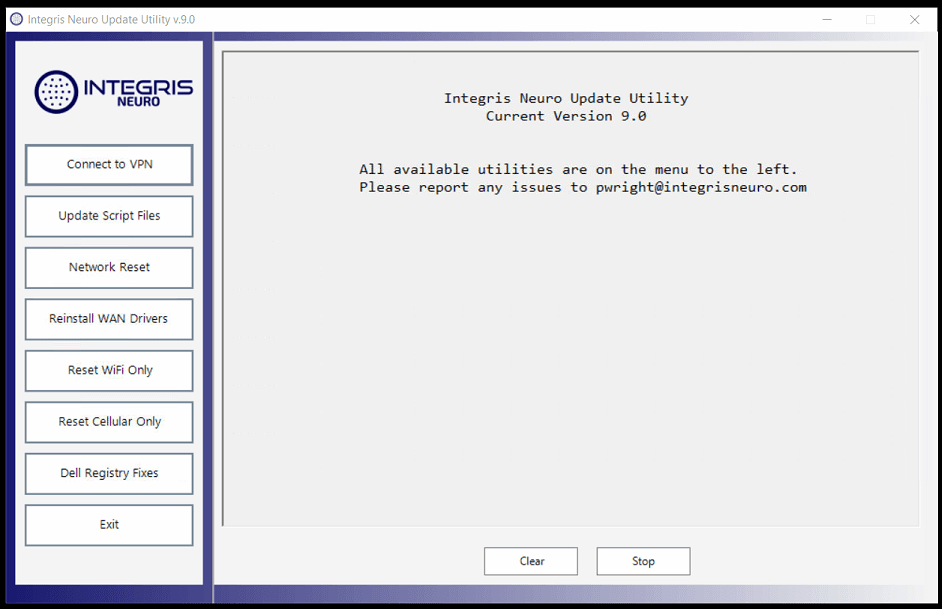
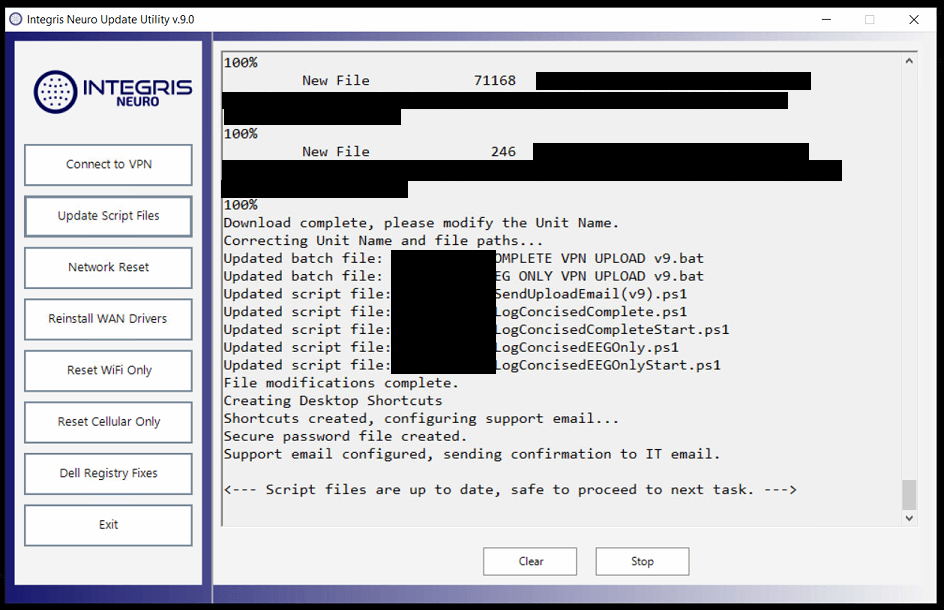
The primary application interface organizes configuration, maintenance, and troubleshooting modules into one guided support workflow.
Up to 70%
Reduction in support time
Modular
Guided troubleshooting workflow
Multi-Network
Wi-Fi, cellular, WAN, and VPN
Production
Designed for IT support personnel
The Problem
Remote support required too many disconnected tools and manual procedures
Supporting remote ambulatory systems required technicians to diagnose problems across several layers of Windows and networking configuration.
Common incidents involved VPN profiles, wireless adapters, cellular connections, WAN drivers, registry settings, outdated scripts, and access to required remote resources.
Technicians often needed to remember numerous commands, navigate several Windows interfaces, locate the correct support script, and manually interpret technical output during an active support session.
The Solution
One guided application for configuration, diagnosis, and remediation
I designed a PowerShell and Windows Forms utility that grouped common support procedures into clearly labeled modules.
Each module performs a focused task, reports progress through a persistent verbose log, and helps technicians validate the result before moving to the next action.
Because modules operate independently, support personnel can run only the tool needed for the current incident without repeating unrelated configuration steps.
Core Capabilities
A technician-focused toolkit for common remote-system issues
The utility combines configuration, remediation, maintenance, and validation tools while keeping each support operation independently accessible.
VPN Setup and Validation
Creates or repairs VPN profiles, initiates connection tests, and validates access to required remote resources.
Utility Script Maintenance
Retrieves and installs the latest approved versions of operational and troubleshooting scripts.
Registry Remediation
Applies standardized registry fixes for known system, connectivity, and hardware-related issues.
Wi-Fi Troubleshooting
Checks wireless adapter state, reviews configuration, resets connectivity, and supports common Wi-Fi remediation procedures.
Cellular Diagnostics
Provides guided checks for cellular adapters, modem state, connection availability, and related connectivity problems.
WAN and Driver Tools
Supports diagnosis and repair of WAN adapters, device drivers, and related Windows networking components.
Connectivity Testing
Runs repeatable checks against network interfaces, gateways, VPN endpoints, and required remote resources.
Verbose Support Logging
Records actions, command output, warnings, failures, and validation results in a persistent technician-facing log.
System Architecture
A modular support workflow built around targeted remediation
The graphical interface coordinates independent PowerShell modules, Windows subsystems, network components, and validation output.
IT Technician
Selects the required support operation
Windows Forms UI
Guides the technician through each module
PowerShell Modules
Runs focused diagnostics and remediation
System Layers
VPN, registry, drivers, adapters, and scripts
Connectivity Checks
Validates local, VPN, and remote access
Verbose Logs
Reports actions, warnings, and results
Select
The technician chooses the module that matches the active support issue.
Inspect
The module checks current device, adapter, driver, script, or connection state.
Remediate
The application performs the appropriate repair or configuration action.
Validate
Post-action checks and verbose logs help confirm whether functionality was restored.
Engineering Decisions
Designed for speed, transparency, and repeatable support
The product decisions focused on helping technicians resolve issues quickly without hiding the technical actions taking place.
Why build a graphical support application?
The intended users were IT support personnel working through active incidents. A graphical interface made the available procedures discoverable, reduced command memorization, and created a more consistent troubleshooting experience.
Why use independent modules?
Remote systems experienced different failure types. Modular tools allowed technicians to run only the relevant repair or diagnostic operation without repeating unrelated steps.
Why combine configuration and troubleshooting?
Many incidents required correcting configuration and then immediately validating the result. Combining both capabilities shortened the path from diagnosis to remediation.
Why automate utility-script updates?
Troubleshooting results could become inconsistent if remote systems used different script versions. Updating tools through the application helped establish a more predictable support baseline.
Why include verbose logging?
Technicians needed to know what the application changed, which commands were executed, and where a process failed. Persistent logs also made escalation and later review easier.
Why validate connectivity at several levels?
An enabled adapter or connected VPN icon did not prove that the complete workflow was functional. Layered checks helped distinguish hardware, local network, VPN, and remote-resource failures.
Technical Challenges
Troubleshooting multiple network layers across varied remote systems
Supporting several network connection types
Remote systems could rely on Wi-Fi, cellular connectivity, Ethernet, VPN connections, or combinations of those technologies. Troubleshooting needed to distinguish local adapter state from broader connectivity problems.
Diagnosing partial connectivity
A device could appear connected while still being unable to reach a VPN service, mapped resource, application endpoint, or required remote system. The utility needed to validate actual workflow connectivity rather than only adapter status.
Handling hardware and driver variation
Different ambulatory systems could contain different wireless, cellular, and WAN devices. The modules needed to locate relevant adapters and avoid making unsafe assumptions about unavailable hardware.
Applying registry fixes safely
Known issues sometimes required custom registry changes. Those remediations needed to target defined settings, provide transparent logging, and avoid modifying unrelated system configuration.
Keeping troubleshooting utilities current
Remote computers could retain older support scripts over time. The application needed a reliable way to retrieve approved versions and reduce script-version drift.
Presenting technical output clearly
Raw command output is not always useful during an active support incident. The tool needed to show enough detail for troubleshooting while still guiding the technician toward the next action.
Development Process
Built from recurring support problems
Document recurring support incidents
I identified the configuration failures, network issues, outdated scripts, and registry problems that repeatedly required technician intervention.
Create standalone remediation tools
Each diagnostic or repair process was initially developed and tested as a focused PowerShell operation.
Organize the tools into modules
Related operations were grouped into clearly labeled sections for VPN, networking, drivers, registry fixes, script maintenance, and general diagnostics.
Build the guided interface
I created a Windows Forms application that exposed the modules through a consistent support workflow and persistent log window.
Add validation and progress reporting
The modules were expanded to report system state before and after remediation rather than merely executing commands.
Refine from support-team feedback
The utility evolved as technicians encountered new hardware variations, network conditions, common failures, and usability needs.
Results
Faster support with more consistent troubleshooting
The utility consolidated frequently used configuration and troubleshooting procedures into a repeatable support workflow. It reduced the time required to diagnose and remediate common remote-system issues by up to 70%.
It also improved consistency between technicians and made support actions easier to understand, validate, and escalate through persistent detailed logging.
Primary outcomes
- Reduced common configuration and troubleshooting time by up to 70%
- Standardized frequent support procedures across technicians
- Reduced dependence on memorized PowerShell commands
- Improved VPN and remote-resource validation
- Reduced troubleshooting-script version drift
- Provided clearer visibility through persistent verbose logging
- Simplified onboarding for additional support personnel
- Established reusable modules for future remote-system support needs
Lessons Learned
What this project taught me
- →Troubleshooting tools should validate outcomes, not merely execute commands.
- →A support interface should make the next useful action easy to identify.
- →Modular remediation tools are easier to test and extend.
- →Detailed logs improve both immediate troubleshooting and later escalation.
- →Version consistency matters for diagnostic utilities.
- →Network problems should be tested across hardware, local, VPN, and application layers.
Project confidentiality
This application was developed for an internal healthcare production environment. Company identifiers, device names, credentials, VPN details, network addresses, proprietary registry values, support endpoints, and operationally sensitive source code have been intentionally excluded. This case study focuses on the application architecture, support workflow, technical decisions, and operational value.
Return to the portfolio to view additional automation projects.
View all projects